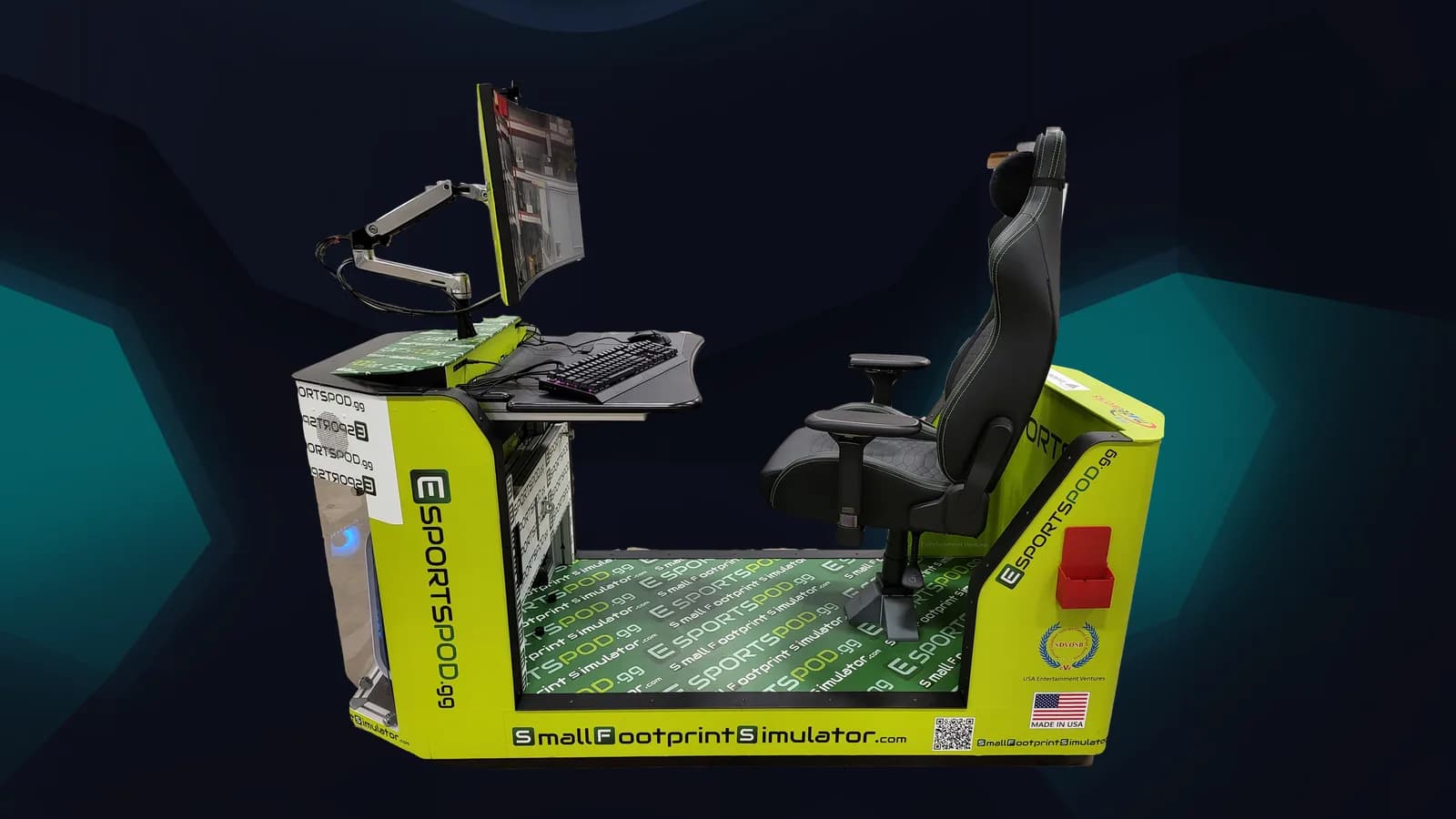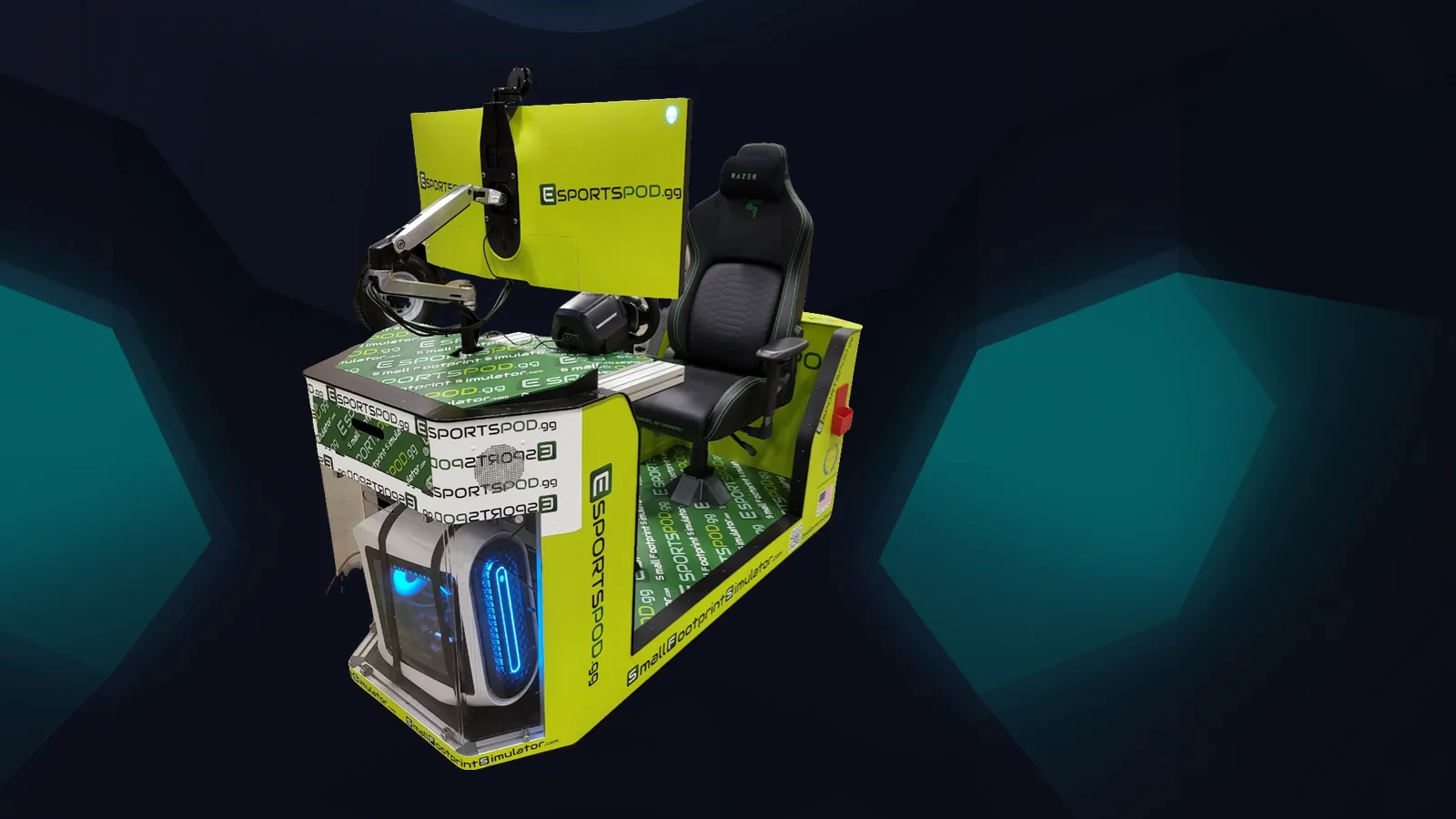
The short version of a good Esport Pod rollout: confirm the room, the outlet and the network before the pods arrive, then spend your first week on accounts, rules and training. Esport Pod by Sports Media, Inc. is built to make that easy, since each pod is a single-seat station that rolls on wheels, fits through standard doors and into elevators, and runs on a standard 110V outlet.
This checklist is written for the person who will get the 7 a.m. call when something doesn't connect. Work top to bottom.
Key takeaways
- Walk the route and the room before delivery day, not after.
- Confirm outlet access and network details with your quote contact in writing.
- Decide who owns accounts, content filtering and device policy before students touch a pod.
- Use installation and training support from Sports Media, Inc. while it is included.
- Run a small pilot week before opening the room to everyone.
What should you check before the pods arrive?
Check the physical path, the room and the outlets. Every pod ships with identical hardware, so the variables are all on your side of the door.
- Route: Pods roll on wheels and fit through standard doors and into elevators. Walk the path from the loading area to the room anyway, and note any thresholds, ramps or tight corners.
- Room: Each pod has a small footprint, but players need space to sit down, get up and let a teammate pass. Leave a clear aisle.
- Outlets: Pods run on a standard 110V outlet. Count outlets near each planned position, and ask facilities whether the circuits are shared with other loads.
- Projector wall: The projector slot mirrors the pod screen to a classroom wall. If you plan to use it for lessons or watch parties, check sightlines now.
How do you prepare the network?
Start by asking what the pods need and getting the answer in writing. Each pod includes a modem and built-in Wi-Fi, so your job is to confirm how that fits with your campus network and policies.
We won't put a bandwidth figure in a blog post, because the right number depends on your deployment size and what you plan to run. Confirm requirements with your quote contact before you finalize anything with your carrier or your network team.
Then loop in whoever manages filtering and security. Gaming traffic can look unusual to a filter built for classroom laptops, and you'd rather find that out in August than in the first week of practice.
What policies and accounts need to be settled first?
Settle ownership, accounts and rules before launch. A pod with no clear owner becomes a shared closet.
- Name a program lead (often an athletic or CTE director) and an IT contact.
- Decide how student game accounts are created and who holds the credentials, with parent consent where your district requires it.
- Write a short acceptable use policy covering games, chat, streaming and the pod camera.
- Set a schedule: class use, club practice, open hours, and who opens the room.
- Check any age ratings against your district policy before choosing titles.
How should you plan installation and training?
Use the support included with the purchase. Deployments of 10, 20 or 30 pods include installation, training and sponsorship support from Sports Media, Inc., so your staff are not expected to figure it out alone.
Schedule training for the people who will actually run the room, not just the administrator who signed the order. If an advisor is out sick in week two, someone else should be able to open the room and reset a pod.
What does launch week look like?
Keep it small. Run a pilot with a handful of students, a teacher and one IT person on call. Test sign-in, headset audio, the Razer Kiyo camera and, if you've added them, the Thrustmaster T248 wheel and pedals or the VR headset.
One honest note on online play: every pod has identical hardware, but identical network conditions only exist at in-person LAN events. Online play across distance always adds ping, so don't promise students a level field when they play remotely.
| When | Task | Owner |
|---|---|---|
| Before delivery | Route, room, outlets, network answers | IT and facilities |
| Delivery week | Installation and staff training | Sports Media, Inc. with your team |
| Week one | Pilot, accounts, policy sign-off | Program lead and IT |
| Week two onward | Open schedule, first events | Program lead |
Frequently asked questions
Do Esport Pods need special electrical work?
Each pod runs on a standard 110V outlet, so most rooms don't need special wiring. That said, you should confirm circuit capacity with your facilities team and your quote contact, especially if you plan to place several pods in one room at the same time.
Can the pods move between rooms?
Yes. Pods roll on wheels and fit through standard doors and into elevators, so you can relocate them for events, classes or a different room. Plan for outlet access and network coverage at the destination before you move one, and keep cables tidy.
Who trains our staff?
Installation, training and sponsorship support from Sports Media, Inc. are included with deployments of 10, 20 or 30 pods. Ask your contact to schedule training for both the program lead and your IT staff, so more than one person can run the room.
What hardware is in each pod?
Each pod includes an Alienware gaming PC, an Alienware 38-inch curved monitor, a Razer Enki chair, a Razer Kraken V3 HyperSense headset, a Razer Kiyo streaming camera, a modem and built-in Wi-Fi. Wheel, pedals, flight controls and VR are options.
Next step
If you're mapping out a rollout, the Esport Pod product page lists the full hardware and deployment sizes. You can also book a demo and bring your IT questions with you. For ideas on running the program once it's live, see our blog.