One of the most common questions teachers ask about gaming and simulation equipment is simple: if only one student can sit in the seat, how does the rest of the class learn? Spring is a time when many teachers plan units for the end of the year, so it is a good moment to answer that question with practical strategies.
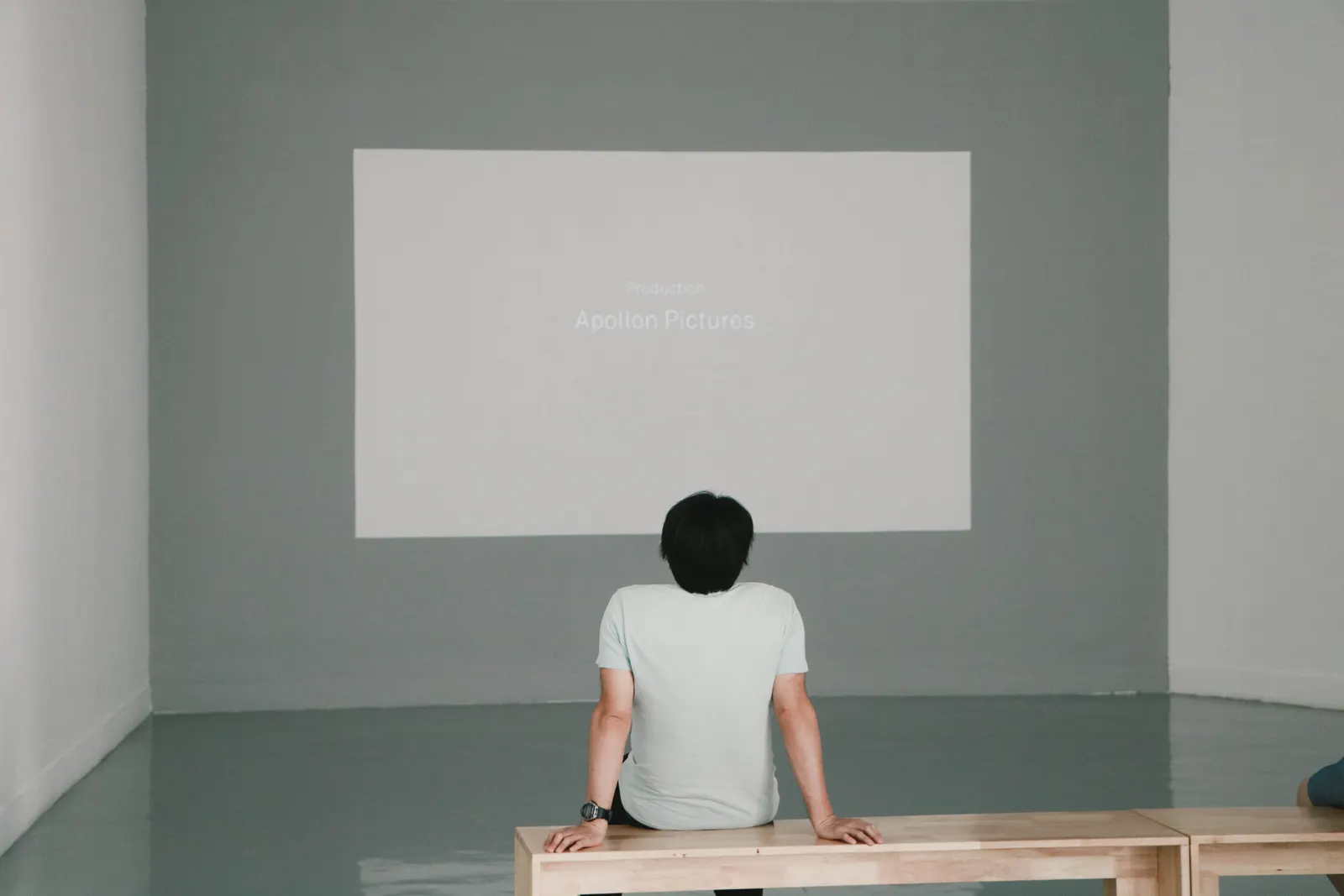
Short answer: project the station's screen onto a classroom wall and give every student a role. When the pod display is shared, the student at the controls becomes the hands of the class, while classmates observe, analyze, navigate and discuss.
How does the Esports Pod projector slot work?
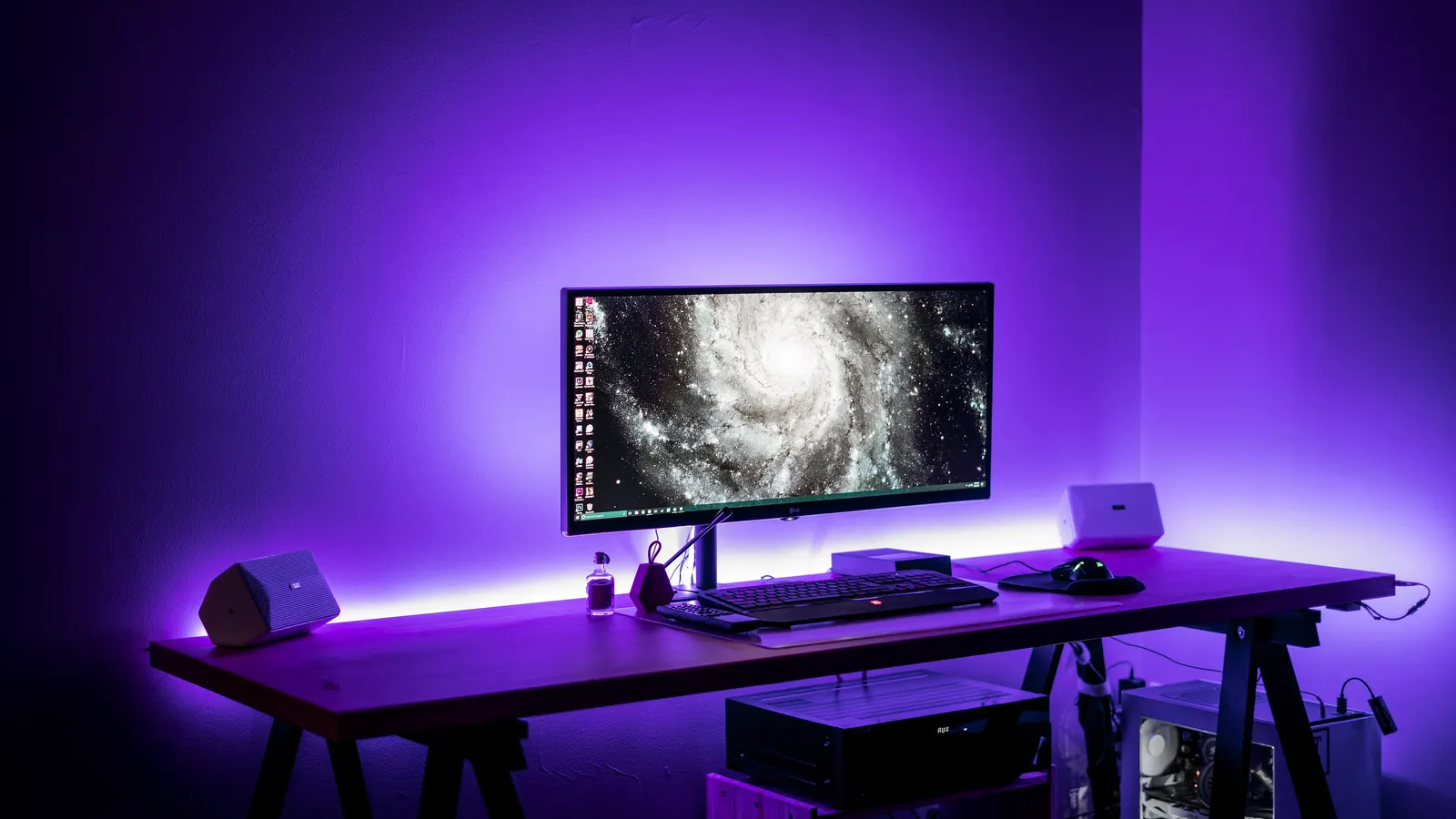
The Esports Pod includes a projector slot designed so a teacher can display the pod screen on a classroom wall. Whatever the student sees on the Alienware 38-inch curved monitor, from a racing line to a cockpit instrument panel, can be seen by the entire room. This turns a single-seat station into a shared teaching tool.
What lesson ideas work with a projected simulator?
- Physics of motion: project a racing simulation and have students estimate braking points, then compare with results.
- Flight principles: one student flies while classmates call out altitude, airspeed and heading.
- Virtual field trips: project an optional VR experience while the class takes notes and asks questions.
- Game strategy: analyze a recorded esports match as a class, like a sports film session.
- Media production: project a live stream setup and discuss camera framing and audio.
How do you give every student a role?
Assign rotating roles so everyone is active. In a flight lesson, roles might include pilot, co-pilot reading the checklist, navigator tracking the route, and observers recording data. In a racing lesson, one student drives while others record lap times, analyze racing lines and suggest adjustments. Rotate roles so each student gets time at the controls.
What classroom setup works best?
Position the pod where the student at the controls can see the class and the teacher can see both. Dim the lights enough for the projection to be clear. Use the headset or room speakers depending on whether the audio should be shared. Because the pod rolls on wheels and runs on standard 110V power, it can be moved into most classrooms without special preparation.
Which subjects benefit the most?
- Physics and engineering
- Math and data analysis
- Geography and earth science
- Career and technical education
- Media, journalism and communications
How do you assess learning in a projected lesson?
Ask students to submit predictions before the simulation and explanations afterward. Use exit tickets with one or two questions tied to the concept. Have groups present what they observed. These strategies keep the focus on learning outcomes rather than entertainment.
How do you keep projected lessons on track?
Plan each session around one concept and a short sequence of tasks. Set a timer for each rotation, prepare the software and scenario before class starts, and have a backup activity ready in case of technical issues. Keep the student at the controls focused by giving them specific instructions from the class, such as a target speed or heading. Structure keeps energy high without losing the lesson.
To see how the projector slot fits your classroom, book a demo or review configurations on our products page.
Frequently asked questions
Can a single simulator work for a whole class?
Yes. Projecting the screen and assigning rotating roles keeps every student engaged while one student operates the controls.
Does the Esports Pod require a special projector?
The pod includes a projector slot for displaying its screen to a classroom wall. Check with our team about compatible projector options for your room.
Which lessons work best with projected simulation?
Physics, flight principles, geography, data analysis and media production lessons all work well with a shared simulation screen.